


Google Sheets
4.824.48K Reviews
App Specs
- Version
- Varies with Device
- Updated On
- License
- Free
- Downloads
- 1,000,000,000+
- Developer
- Google LLC
- Categories
- Productivity
- Platform
- Android, iOS
Screenshots
 Analysis by AppCompare
During my first week with Google Sheets, the appeal was immediate: I could turn a small, messy problem into a table I could actually use. A grocery budget, a guest list, or a shared plan is easy to start without setting up a separate project system. That quick start is the app’s strongest first impression, though I’ve found its lasting value depends less on making a clever sheet and more on whether I return to it when the routine gets busy.
When a spreadsheet earns a place in your routine
Sheets is a productivity app from Google LLC, and its appeal is practical rather than flashy. I’d reach for it when information has rows, columns, or calculations: splitting household costs, tracking stock for a small side project, comparing travel options, or keeping a shared list of tasks with dates and owners. It is free, rated for Everyone, and its broad reach—over a billion installs—makes it a familiar option for people who already use Google tools. Its average rating is 4.3 from around 1.3 million ratings, with roughly 23,000 written reviews.
What makes a sheet useful after the first session is a clear purpose. I try to give each tab one job, label columns in plain language, and decide what I will update and how often before adding formulas. For a household budget, for example, a short list of recurring expenses and a monthly total may be more sustainable than a complicated workbook with categories nobody remembers to maintain. A small sheet that gets updated beats an elaborate one that becomes stale.
Guides and Analysis on Google Sheets
A realistic everyday use is coordinating a shared meal. I can put dishes, ingredients, and the person bringing each item in separate columns, then let everyone fill in their own row. That is more dependable than trying to keep a long group chat current, especially when several people are making changes. The trade-off is that a spreadsheet needs a little agreement: if someone edits the wrong cell or uses a different naming style, the list can become harder to scan. Clear headers and a quick note about what belongs in each column prevent much of that friction.
Keeping the useful parts, and avoiding spreadsheet fatigue
I keep Sheets useful by giving each recurring table a clear owner, a fixed update moment, and a simple rule for what counts as a complete entry. That small routine helps prevent a shared list from turning into a pile of half-finished rows, while a quick monthly cleanup can remove categories nobody uses. The next section looks at how collaboration works best when everyone understands the sheet’s purpose.
Collaboration is strongest when the sheet has a shared purpose
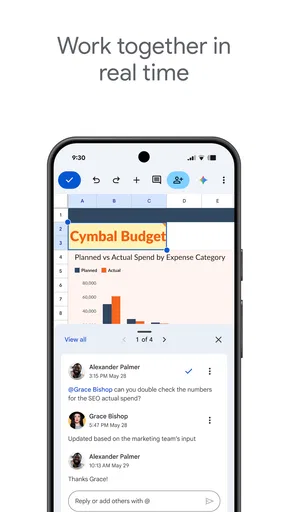
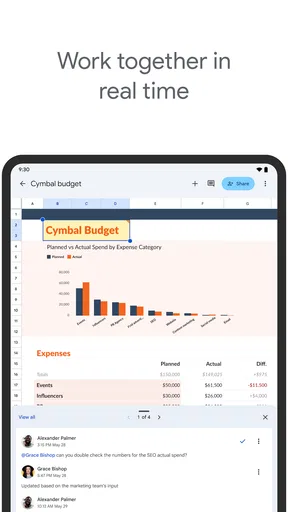
For a recurring team task, I value being able to work on the same sheet rather than passing copies back and forth. Comments can keep a question attached to the relevant information, and seeing edits appear while people work helps reduce uncertainty about which version is current. I would still keep the sheet focused: it is handy for shared figures, lists, and lightweight planning, but it is not a replacement for a dedicated project tool when a team needs detailed task ownership, reminders, or a more structured discussion space.
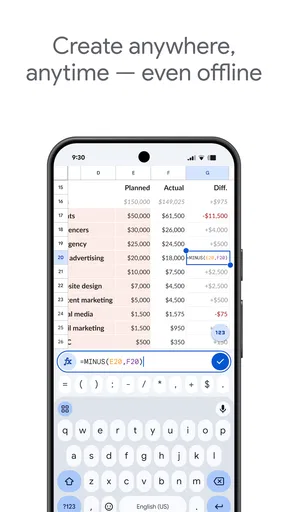
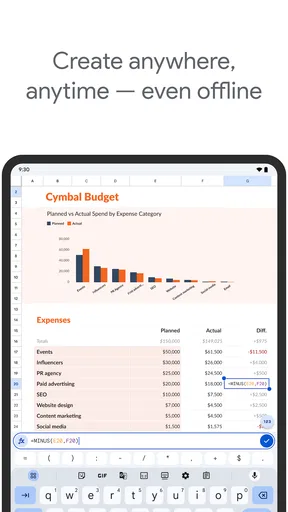
Offline access is useful when I need to consult or edit a sheet away from a reliable connection; changes can sync again after I’m online. I treat that as a safety net, not a reason to ignore connectivity altogether. Before a trip or a busy day, I’d open the sheet while connected and make sure I’m working with the copy I expect. That habit matters most for time-sensitive information, where relying on an old view could cause confusion.
Worth Reading Before You Choose

Flipboard Shows What News Apps Must Do Beyond the Feed

Switching to Android Auto Means Rethinking Your Driving Routine

Google Calendar Makes a Crowded Week Easier to Manage

Ludo King Makes the Most of the Minutes Between Plans

Baby Panda World Brings Quick Play to Modern Phones, but Its Game Library Feels Busy

ESPN’s Live Game View Makes Following Close Games Easier
Use formulas to reduce upkeep, not to show off
Formulas are where a simple sheet can save repeated effort. A total that updates as I add expenses is more dependable than doing the same arithmetic by hand, and a consistent layout makes it easier to notice missing entries. My advice is to start with only the calculations that remove a real chore. If a formula becomes difficult to explain to the next person using the sheet, it may cost more in maintenance than it saves. Templates can help me avoid a blank-page start, but I still remove sections I won’t use; leaving an oversized template intact can make a small task feel like admin work.
On a phone, I find Sheets best for checking figures, adding a quick entry, or making a small correction. A long formula, a wide table, or careful formatting is usually more comfortable on a larger screen. That is the key mobile trade-off: having the sheet at hand is valuable, but a phone does not make every spreadsheet task pleasant. If most of my work involves building complex models or editing large tables, I’d choose a desktop spreadsheet workflow and use the app mainly for quick access rather than forcing every task onto a small display.
Maintenance is the real test after the novelty fades
Over time, I judge a personal tracker by whether it stays easy to update. I keep column names stable, avoid adding a new tab for every passing idea, and periodically remove rows or categories that no longer serve a decision. If I stop trusting a sheet because it is out of date, the answer is often to simplify it, not add more formulas. For information other people depend on, I’d also be deliberate about who can change the shared content and keep important notes close to the relevant rows.
The main source of fatigue is that spreadsheets can look organized while quietly demanding ongoing care. Someone has to enter the information, correct mistakes, and decide what the totals mean. Sheets will not make an unclear process clear by itself, and a polished template cannot replace a habit. For recurring tasks, I prefer one small update at a predictable moment—such as recording expenses after checking a receipt—over trying to reconstruct a whole week later. That is a personal workflow choice, but it is what makes a tracker useful rather than decorative.
Where it fits beside other productivity tools
Compared with a notes app, Sheets is better when I need to sort, compare, or calculate structured information; a note is simpler for free-form thoughts and paragraphs. Compared with a dedicated task manager, Sheets gives me more freedom to arrange fields and build totals, but it asks me to create more of the structure myself. And compared with desktop spreadsheet software, the mobile app is convenient for shared access and quick edits, while a computer is usually the better place for extensive formula work or precise layout changes. I see it as a flexible everyday tool, not the automatic best choice for every kind of planning.
It is a particularly good fit for people who already use Google accounts, want to share a living table, or need a free way to handle practical calculations. I’d hesitate to recommend it to someone who dislikes maintaining records, mainly wants a polished visual planner, or needs a formal database with tightly controlled workflows. It can also be overkill for a one-off checklist; a simple note may take less effort and be easier to revisit.
What to expect before making it a habit
You can create a sheet for a personal task or collaborate on a shared one, but the best setup depends on what you need to do with it. If a sheet is only for your own reference, a simple layout is enough. If others will edit it, decide on column meanings and editing expectations first. That small conversation is often more useful than adding extra tabs or formulas, because it keeps everyone entering information in a consistent way.
For a new user, I’d start with a template only if it matches the task, then remove anything irrelevant and test the sheet with a few real entries. That quickly reveals whether the headings make sense and whether the calculations are doing useful work. If the sheet is meant to be shared, ask another person to use it before relying on it; confusing labels are easier to fix early than after the table has filled up.
The Android release dates back to April 30, 2014, and the current version is 1.25.501.00.90, with Android 8.0 as the minimum operating system requirement. Those details matter when deciding whether an older device can run it, but the more important question for me is whether a spreadsheet matches the job. The app’s steady usefulness comes from returning to a well-designed table, not from installing it and expecting it to organize everything automatically.
So, I’ve been diving into Google Sheets recently, and let me tell you, it’s a game-changer if you’re into organizing your life or work like a pro. Whether you’re juggling personal budgets, planning a party, or managing a business, this app has got your back. Let’s break down why it’s such a hit.
Getting Started with Google Sheets
First off, getting started with Google Sheets is a breeze. You’ll need a Google account (which most of us already have), and once you’re logged in, you’re ready to roll. The app is available on both Android and iOS, making it super handy for people on the go. I mean, who doesn’t love the idea of updating their expense tracker while waiting for their coffee?
Features That Stand Out
Okay, let’s talk features. This app is packed with all sorts of goodies. From basic spreadsheets to complex formulas, it’s like having Excel in your pocket. You can create new sheets, open existing ones, and even work offline. And yes, your changes will sync automatically once you’re back online. Pretty neat, right?
One of my favorite features is the ability to collaborate in real-time. Imagine working on a project with your team while you’re all in different locations. You can see everyone’s edits as they happen, add comments, and chat within the app. It’s like having a mini office meeting without the awkward coffee spills.
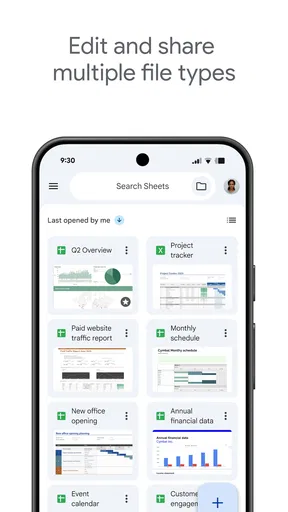
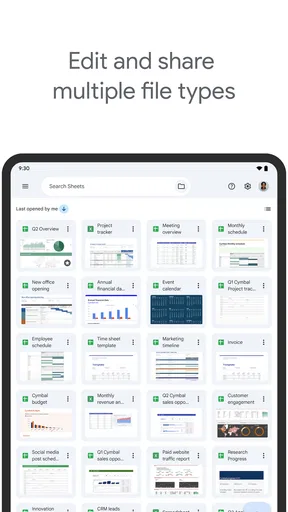
For those spreadsheet pros out there, Google Sheets supports all sorts of functions and formulas. You can do everything from simple arithmetic to complex statistical analyses. Plus, the app offers a bunch of templates to get you started, whether you’re tracking your fitness goals or planning your next big vacation.
Why You’ll Love It
Here’s the thing, Google Sheets is more than just a spreadsheet app—it’s a productivity powerhouse. The ease of use combined with the powerful features makes it ideal for both personal and professional use. Plus, it’s free! You don’t have to worry about shelling out big bucks for a software license. Everything is stored in the cloud, so you’ll never lose your data. And the best part? It’s constantly updating with new features to make your life easier.
The Final Word
In a nutshell, if you’re looking for an app to help streamline your organization game, Google Sheets is a fantastic choice. It’s versatile, user-friendly, and packed with features that make it stand out in the productivity app space. So, whether you’re a spreadsheet newbie or a seasoned pro, give it a try. You might just find it’s exactly what you’ve been missing!
Pros
- Seamless integration with Google Drive.
- Real-time collaboration with multiple users.
- Extensive library of templates available.
- Accessible from any device with internet.
- Supports complex functions and formulas.
Cons
- Requires internet for full functionality.
- Limited offline editing capabilities.
- Complex features may overwhelm beginners.
- Mobile app has reduced feature set.
- Data visualization options are basic.
FAQs for Google Sheets
What are the main features of Google Sheets?
Google Sheets offers a variety of features including real-time collaboration, cloud storage, and extensive formula support. It integrates seamlessly with other Google Workspace apps, allowing for easy data import/export. Users can also utilize add-ons to enhance functionality, access pre-built templates, and automate tasks with Google Apps Script.
Is Google Sheets available offline?
Yes, Google Sheets can be used offline. To enable offline access, you need to use the Google Chrome browser and install the Google Docs Offline extension. Once set up, you can view and edit your spreadsheets without an internet connection, and any changes will sync automatically once you're back online.
How secure is my data in Google Sheets?
Google Sheets uses robust security measures to protect your data, including encryption in transit and at rest. Google Workspace also complies with international security standards like ISO/IEC 27018. Users can manage sharing settings to control who can view or edit their documents, enhancing privacy and data control.
Can Google Sheets handle large datasets efficiently?
Google Sheets can handle large datasets, but there are limitations. It supports up to 10 million cells per spreadsheet. While it's efficient for moderate data sizes, users working with extremely large datasets may experience performance issues. In such cases, integrating with BigQuery or using Excel may be advisable.
Are there any costs associated with using Google Sheets?
Google Sheets is free for personal use within the Google Workspace suite. However, there are premium plans available for businesses, which offer additional storage, advanced security options, and priority support. These plans are part of the Google Workspace subscription model, with pricing based on user needs.


